Convert PNG to PDF online and for free. Upload one image or several, and each becomes a PDF document.
or drop, paste, or choose from cloud





Transparency is the usual reason to choose PNG over JPG, and it is the one thing that changes when you convert PNG to PDF. A PNG can mark pixels as see-through, which is how a logo sits on any background without a white box around it.
A PDF page does not work that way. The image is placed onto a page, so whatever sits behind the see-through pixels becomes part of the finished document. Nothing is lost from the visible part of the picture. The transparent part simply stops being transparent.
If that matters, decide the background before you convert. Save the PNG onto the color you want in an image editor, then upload it, and the PDF page shows exactly what you saw. None of the tools ranking for this term explains any of this, which is the main reason the section is here.
How sharp the finished PDF looks is decided by the PNG you upload. The image goes onto the page at the resolution it arrived with, so a screenshot taken on a high resolution display makes a crisp page, and the same screenshot shrunk to fit an email does not.
PNG helps here, because it uses lossless compression. Nothing was thrown away when the file was saved, which is not true of JPG, where every re-save drops a little more detail. Start from the original PNG rather than from a copy of a copy.
Photos of paper are the other half of the question. Hold the camera square to the page, fill the frame, and light the page evenly. If the shot still comes out at an angle, turn on Deskew and the converter straightens it for you.
PNG files are raster images. They are made up of pixels and cannot be scaled up without losing image quality.
These images are similar to JPG files, but they can display transparent backgrounds and areas, like GIF images. However, they cannot display animations. They also use lossless compression, which improves image quality compared to JPG.
File extension: .png, MIME type: image/png
PNG on WikipediaThe defaults handle an ordinary PNG. These are here for when they do not.
| Setting | What it does | Default |
|---|---|---|
| PDF Version | Writes the file to a chosen PDF specification: 1.4, 1.5, 1.6, 1.7 or 2.0. Older readers and some print shops still ask for 1.4. | PDF 1.4 |
| Enable deskew | Straightens an image that was scanned or photographed at an angle. Useful on a phone photo of a page, and it works whether or not text recognition is on. | Off |
| Enable OCR | Reads the words in the image so they can be searched and copied in the finished PDF. Leave it off when you only want the picture on a page. | Off |
| OCR Language | Tells the text recognition which language to expect, from 124 of them. Pick more than one when a page mixes languages. | English |
Text recognition is off to begin with because a PNG to PDF conversion is a picture becoming a page, and most of them need nothing more than that.
Six jobs this app is asked for most, and what to expect from each.
Windows and macOS both save screenshots as PNG, so a screenshot to PDF job starts here. As a PDF it attaches to a ticket, an email or a claim like a document instead of a loose image.
A receipt, a form or a page from a book photographed on a phone. Deskew straightens the shot if you took it at an angle, and the PDF files like a document.
Plenty of scanners hand back a PNG rather than a PDF. Converting it puts the scan into the format the rest of the world expects a scanned document to be in.
Add as many PNG images as you need and they convert in one go, with the same settings applied to each. Every image comes back as its own PDF document.
Turn on text recognition and the words in the image become words in the PDF, so you can search the document and copy from it rather than retyping.
A PDF opens the same way on every device and prints at the size it was made for. That is the plain reason most people change a PNG to PDF at all.
Upload your PNG image.
Choose your preferred PDF version. (optional)
Enable "Deskew" if your image or photo is tilted. (optional)
Start the conversion. After a short wait you can download your PDF document.
Yes. Everyday PNG to PDF conversions are free and need no account: upload the image, press Start and download the PDF. A subscription only matters for very large files and longer batches.
Upload the PNG, then press Start. The image is placed on a PDF page and the document is ready to download. Everything else on this page is optional.
This converter runs in the browser, so there is nothing to install and no plugin to allow. It works the same on Windows, macOS, Linux, Android and iOS.
Yes. Add as many PNG images as you need and they are converted in one go, with the same settings applied to each. Every image is returned as its own PDF document.
The image goes onto the page at the resolution you uploaded, so the PDF is as sharp as the PNG was. Upload the original file rather than a shrunken copy and the page looks right.
A PDF page has no transparency, so see-through areas are flattened onto the page. The visible part of the image is unchanged. If the background matters, set it in an image editor before you convert.
Turn on text recognition and pick the language of the text. The words in the image are read and added to the PDF, so the document can be searched and copied from instead of retyped.
It travels over an encrypted connection and is processed automatically in ISO 27001 certified data centers. Nobody reads or copies your files, they are not used to train AI models, and you keep the copyright to both the image and the PDF.
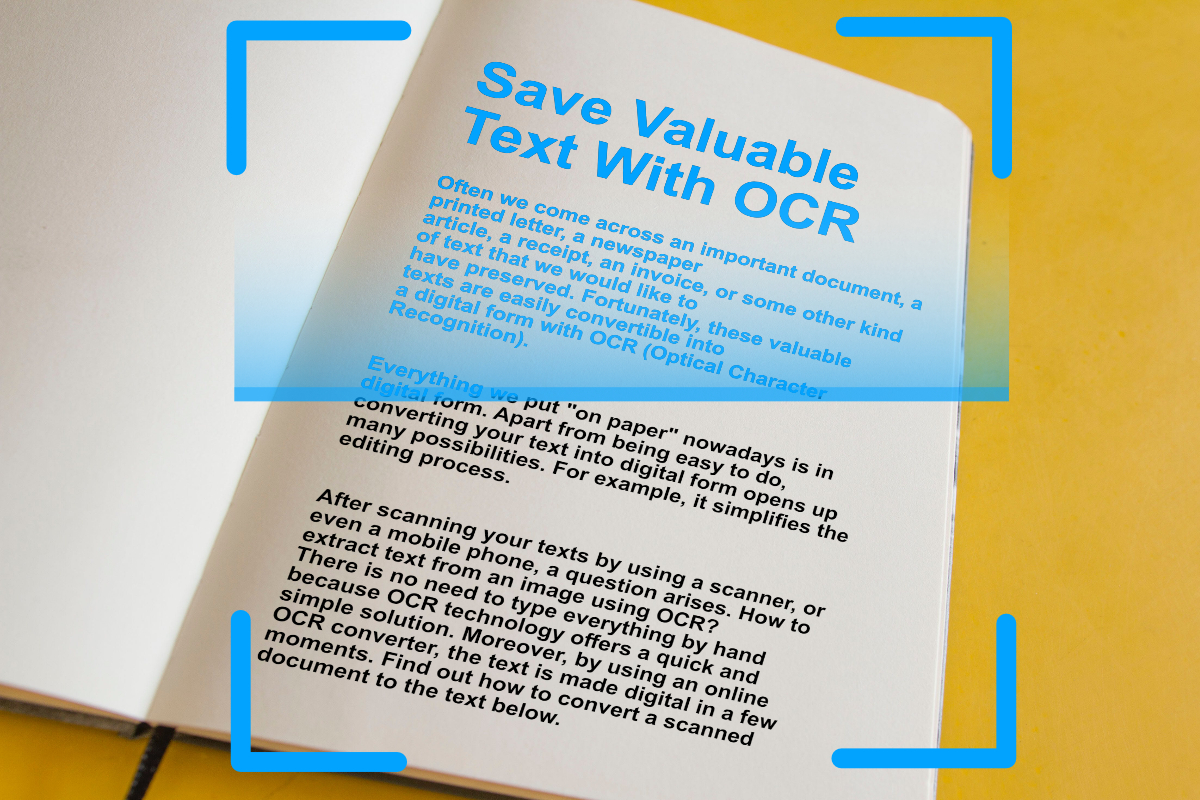
Digitize important text from scanned documents and images with OCR (Optical Character Recognition). Extract text from images easily, online.
Read articleEvery app here runs in the browser, with nothing to install.