This JPG to PDF converter can run OCR, so the text in your image becomes text you can select.
or drop, paste, or choose from cloud





What is OCR? Optical character recognition is used to identify letters, numbers, or special characters in a scanned document or image. Using an OCR converter, you can extract the text from such files so you can change, edit, print, or save it.
Without text recognition a JPG inside a PDF is still a picture. Nothing in it can be selected, copied or found by a search. OCR reads the letters and stores them in the PDF as real text.
The text recognition reads 124 languages, from English, Spanish and Portuguese to Hindi, Arabic, Russian and Japanese. Set the language of your page and the result gets noticeably more accurate.
A page held in one hand and photographed with the other is never square. Deskew straightens a tilted scan or photo automatically, which gives the text recognition a much easier job.
A JPG holds pixels, not letters. Put one straight into a PDF and the page looks right, but a computer still sees a photograph: no word can be selected, no quote can be copied and a search finds nothing.
Text recognition changes that. It reads the shapes in the image, works out which letters they are, and stores them in the PDF next to the picture. The page looks exactly like your original and the words behave like words.
Turn the OCR option on before you start the conversion. Leave it off and you get a perfectly good PDF that happens to be unreadable to every search box you will ever paste it into.
JPG and JPEG are the same image format under two file extensions. Older Windows versions did not allow file extensions with more than three characters, so they used .jpg, while Mac and UNIX systems used .jpeg.
Even though Windows computers now support files with the longer .jpeg extension, the three-character extension has become more widely used. Apart from the extra character, there is no real difference between JPG and JPEG images.
Both are accepted here, and both convert to PDF the same way.
File extension: .jpg, MIME type: image/jpeg
JPG on WikipediaThe defaults handle an ordinary image. Only the OCR switch really needs your attention.
| Setting | What it does | When to change it |
|---|---|---|
| Use OCR | Reads the text in the image and stores it in the PDF as real text. | Turn it on whenever the image contains words you want to keep. |
| Language | Tells the text recognition which alphabet and vocabulary to expect. 124 languages are available. | Set it to the language of the text in the image. |
| Deskew | Straightens a tilted scan or photo automatically. | Turn it on for anything photographed by hand or fed through a scanner at an angle. |
| PDF Version | Writes the output to a specific PDF specification, from 1.4 to 2.0. | Leave it alone unless a system you send the file to asks for one version. |
The free plan takes 3 files of up to 50 MB in one conversion, and each JPG comes back as its own PDF.
Three everyday jobs where the picture is not the point, the words in it are.
Plenty of scanners and scanner apps save straight to JPG. Converting that scanned image to PDF with OCR gives you one document instead of a folder of pictures, and the text comes with it.
A phone shot of a contract, a form or a page of a book. Deskew squares the image up, the text recognition reads it, and the PDF you get back can be searched like any other document.
Receipts, invoices and letters usually arrive as images. Converted to PDF with the text recognized, they can be filed once and found later by an amount, a name or a reference number.
Upload your JPG image.
Turn on the OCR option so the text in your image is recognized.
Select the language of the text in your JPG. (optional)
Enable deskewing if your photo or image is crooked. (optional)
Start the conversion. After a short wait you can download your PDF document.
Yes. Converting a JPG to PDF with OCR is free and needs no account. Upload the image, turn on OCR, press Start and download the PDF. A subscription only matters for larger files and longer batches.
Yes, as long as OCR is switched on before you start. The text recognition writes the words into the PDF, so they can be selected, copied and found by a search. With OCR off, the PDF holds only the picture.
The same way, with one extra step. Turn on deskew and a page photographed at an angle is straightened first, which is what a handheld shot almost always needs. A sharp, evenly lit photo reads about as well as a flatbed scan.
124, from English, Spanish and Portuguese to Hindi, Arabic, Russian and Japanese. Pick the one your page is written in before you start, because the recognition is far more accurate when it knows which alphabet to expect.
Yes. Add as many as you need and they are converted in one go, each returned as its own PDF with the same settings applied. The free plan takes 3 files of up to 50 MB per conversion.
Yes. JPG and JPEG are the same format under two file extensions, and both are accepted here. The other common image formats work too, so a TIF or a BMP of the same page converts just as well.
One of the PDF apps instead. Make PDF searchable adds recognized text to a PDF you already have, and PDF to text pulls the words out as a plain text file. This page is for image files.
It is sent over an encrypted connection and processed automatically on servers in Europe. Nobody reads or copies your files, they are not used to train AI models, and the download link is random, so it cannot be guessed.
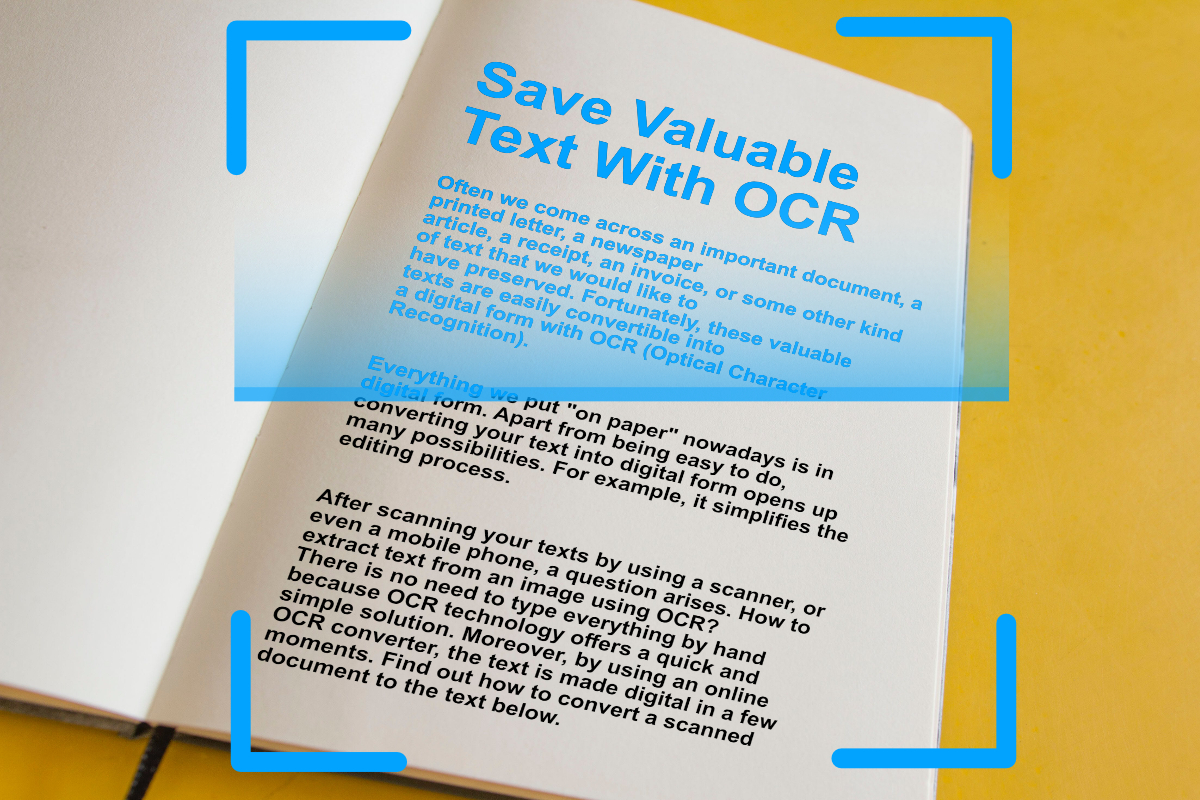
Digitize important text from scanned documents and images with OCR (Optical Character Recognition). Extract text from images easily, online.
Read articleEvery app here runs in the browser, with nothing to install.