Turn photos, images and scanned pages into editable Word documents. Text recognition runs online, with no software to install and no account needed.
or drop, paste, or choose from cloud





An image dropped into Word is still an image. Text recognition reads the characters in the JPG and writes them into the document, so you can select, correct and reformat every line.
Pick Microsoft Word (*.docx) for current versions of Word, or Word 2003 or older (*.doc) when the file has to open on an old machine. The choice sits next to the uploader.
Text recognition works in 124 languages and you can select several at once when a page mixes them. Naming the language is the single biggest thing you can do for accuracy.
Two OCR methods are offered and you pick the one that suits the file. Layout keeps the page geometry: columns, tables and the position of every block stay where they were in the image. Text recognition ignores the geometry and interprets the characters as well as it can.
Layout is the right choice for a form, an invoice or a table photographed on a desk, where the shape of the page carries meaning. Text recognition wins on a dense page of prose, a crooked photo or a low-contrast scan, where holding the layout costs accuracy.
With Layout selected there is one more switch, Improve OCR, which turns the page monochrome before reading it. That lifts accuracy on a faint or unevenly lit photo, and it costs the color, so it stays off unless you ask for it.
Conversion Method, OCR Method, OCR Language and Improve OCR all sit in the settings panel beside the uploader.
JPG is the format people ask about most and it is far from the only one that works. PNG, GIF and TIF images convert the same way, JPEG is simply the same format written with a longer extension, and a PDF - scanned or digital - converts here too.
What is inside the picture matters far more than the extension. A flat, well lit page photographed straight on reads almost perfectly. A steep angle, a shadow across the paper, a blurred shot or handwriting will all cost accuracy, and no converter avoids that.
A scan behaves the same way as a photo. However the page arrives, it is a picture of text until text recognition reads it, and the settings that help are the same ones.
DOC is the document file format introduced by Microsoft Word and uses the .DOC file extension. In addition to text, these files can also contain hyperlinks, images, graphics, tables, advanced formatting, and other elements.
With Microsoft Office 2007, the .DOCX file extension was introduced. It uses the Microsoft Office Open XML international standard, which makes the format more accessible and usable.
While newer versions of Microsoft Word can open the older DOC format, DOCX files cannot be opened in older versions. If they can be opened, the formatting may be incorrect or parts of the document may be missing.
File extensions: .docx and .doc. MIME type: application/vnd.openxmlformats-officedocument.wordprocessingml.document
Converting an image to Word is free and needs no account. Add several files and they convert in one go, each returned as its own document with the same settings applied.
Every upload and download runs over an encrypted connection, so your pages cannot be read on the way. Processing is fully automated: nobody looks at your files and they are never used to train AI models.
You keep the copyright and the ownership of both the image you upload and the Word document you get back, and the servers that do the work are in Europe.
Text recognition is only ever as good as the picture it reads. This is what to expect, and which settings to reach for.
| What you upload | Settings to use | What you get |
|---|---|---|
| A flat, well lit photo of a printed page | Convert with OCR, OCR Method set to Layout | Editable text with the columns and tables still where they were |
| A phone photo taken at an angle, or a dense page of prose | Convert with OCR, OCR Method set to Text recognition | Editable text, with the original positions not preserved |
| A faint, grey or unevenly lit page | Convert with OCR, Layout, Improve OCR switched on | Better accuracy, and the page comes back without its color |
| Handwriting | Any setting | Little or nothing. Text recognition reads printed characters, not handwriting |
| An image you only want to place inside a document | Convert, the default | The picture inside a Word file, with no text layer behind it |
Naming the language of the page does more for accuracy than any other setting. 124 languages are offered and several can be picked at once.
Upload your image or scan. It can be a PNG, JPG, another image file, or a PDF document.
Choose your Microsoft Word format (DOC or DOCX) from the dropdown menu.
Set the Conversion Method to Convert with OCR so the text in the picture becomes editable.
Select the language of your file to improve OCR results.
Click "Start".
Upload the image, choose Microsoft Word (*.docx) or Word 2003 or older (*.doc), set the Conversion Method to Convert with OCR, pick the language of the page and press Start. The characters in the picture are read and written into a Word file you can edit.
Yes. Converting an image to Word is free and needs no account, and it costs no credits. Paid plans exist for very large files, longer batches and priority processing, and an ordinary conversion does not need one.
Only if the Conversion Method is set to Convert with OCR. Left on Convert, the image is placed in the Word file as a picture and nothing in it can be selected. With OCR on, the characters are read and written as real text you can edit, search and reformat.
JPG, PNG, GIF and TIF images all convert the same way, a photo taken with a phone works too, and a scanned page or a PDF is accepted as well. What is inside the file matters more than the extension: a flat, well lit page reads best, while a shadow, a steep angle or a blurred shot costs accuracy.
Choose Microsoft Word (*.docx) unless the file has to open in Word 2003 or an older program. DOCX is the current standard and holds formatting more reliably. DOC exists for the older software that cannot read DOCX.
124 source languages are offered, from Arabic and Hindi to Russian, Turkish and Vietnamese, and several can be selected at once when a page mixes them. Naming the language before you convert does more for accuracy than any other setting.
No. Drop a JPG into a Word document and it stays a picture: the words in it cannot be selected, searched or edited. Reading the characters out of the image has to happen before the file reaches Word, which is what this converter does.
Yes. The connection is encrypted in both directions, so nobody can read the file while it travels. Text recognition is fully automated, so no person opens your pages, and the files are never used to train AI models. The rights to the image and to the document stay with you.
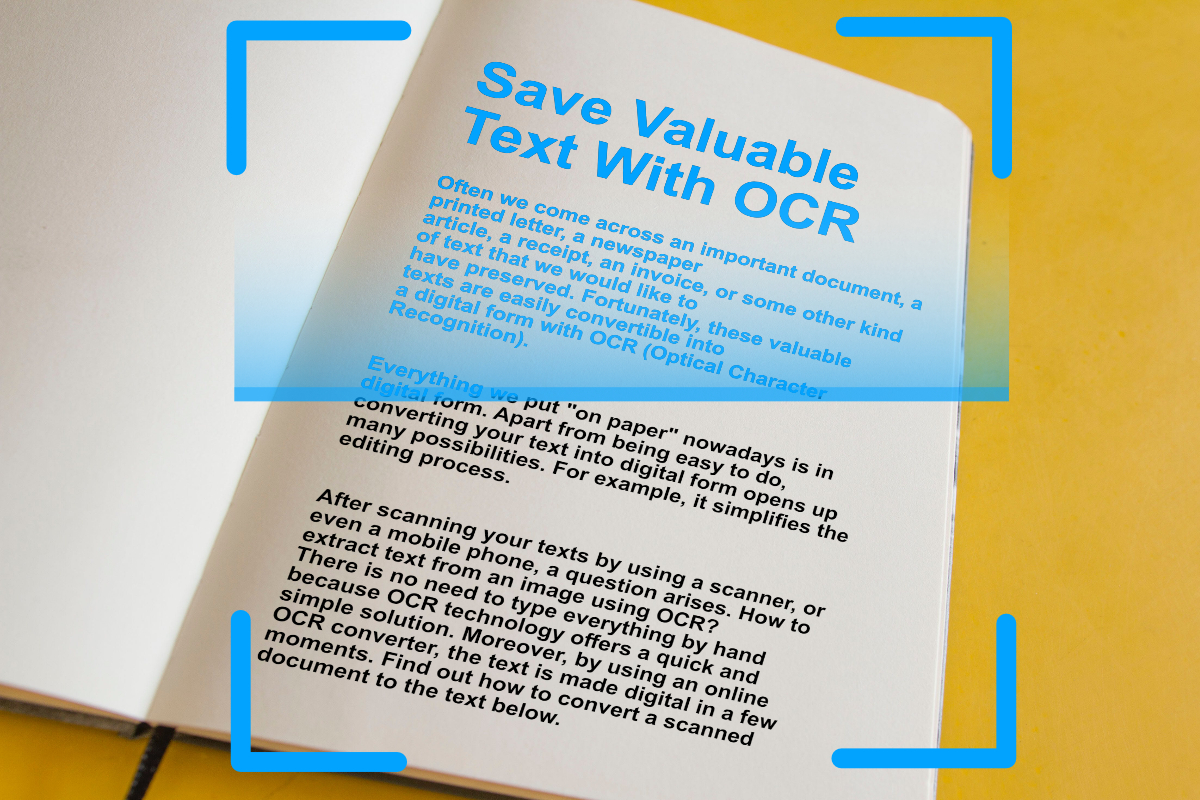
Digitize important text from scanned documents and images with OCR (Optical Character Recognition). Extract text from images easily, online.
Read article